Admissions · checklist · PR493
MyCreds request and share checklist
Request a digital transcript or credential through MyCreds and share it: start at your school, watch for the notification email, then share it with the recipient.
Download
- PDF, US Letter (fillable) · 56 KB
- PDF, A4 (fillable) · 57 KB
- Word (.docx), editable · 39 KB
- Excel (.xlsx), editable · 8 KB
The PDFs have fill-in boxes you can type into in a PDF reader, or print and write by hand. Both sizes print without scaling. The Word and Excel files are yours to change. Nothing is sent to us.
How to use it
- Start at your school's records office page.
- Finish account setup from the MyCreds notification email.
- Share each document and ask the recipient to confirm.
What's on the sheet
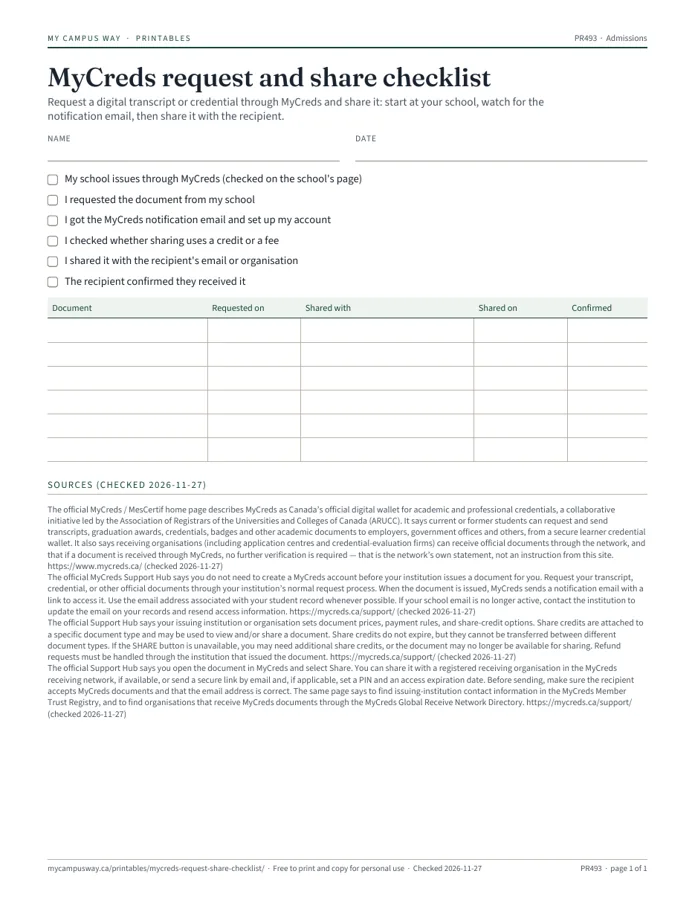
Checklist
- My school issues through MyCreds (checked on the school's page)
- I requested the document from my school
- I got the MyCreds notification email and set up my account
- I checked whether sharing uses a credit or a fee
- I shared it with the recipient's email or organisation
- The recipient confirmed they received it
Table
- Columns: Document, Requested on, Shared with, Shared on, Confirmed
- 6 blank rows
Sources
- The official MyCreds / MesCertif home page describes MyCreds as Canada’s official digital wallet for academic and professional credentials, a collaborative initiative led by the Association of Registrars of the Universities and Colleges of Canada (ARUCC). It says current or former students can request and send transcripts, graduation awards, credentials, badges and other academic documents to employers, government offices and others, from a secure learner credential wallet. It also says receiving organisations (including application centres and credential-evaluation firms) can receive official documents through the network, and that if a document is received through MyCreds, no further verification is required — that is the network’s own statement, not an instruction from this site. Source · checked 2026-11-27
- The official MyCreds Support Hub says you do not need to create a MyCreds account before your institution issues a document for you. Request your transcript, credential, or other official documents through your institution’s normal request process. When the document is issued, MyCreds sends a notification email with a link to access it. Use the email address associated with your student record whenever possible. If your school email is no longer active, contact the institution to update the email on your records and resend access information. Source · checked 2026-11-27
- The official Support Hub says your issuing institution or organisation sets document prices, payment rules, and share-credit options. Share credits are attached to a specific document type and may be used to view and/or share a document. Share credits do not expire, but they cannot be transferred between different document types. If the SHARE button is unavailable, you may need additional share credits, or the document may no longer be available for sharing. Refund requests must be handled through the institution that issued the document. Source · checked 2026-11-27
- The official Support Hub says you open the document in MyCreds and select Share. You can share it with a registered receiving organisation in the MyCreds receiving network, if available, or send a secure link by email and, if applicable, set a PIN and an access expiration date. Before sending, make sure the recipient accepts MyCreds documents and that the email address is correct. The same page says to find issuing-institution contact information in the MyCreds Member Trust Registry, and to find organisations that receive MyCreds documents through the MyCreds Global Receive Network Directory. Source · checked 2026-11-27